The Vendasta Platform
Outcomes
Your mental model for the platform
The platform is built around one idea: AI does the work, you orchestrate. AI Employees answer calls and messages, capture leads, and book appointments. Automations move work between them. You configure, supervise, and sell the outcomes. That changes what your time is spent on: less of the repetitive work itself, more running the system that does it.
That sentence used three building blocks, and everything in the platform is made of them. Flip each one:
Together they form one chain: you sell the product, the AI Employee it unlocks does the work, and an automation acts on that work for you. The receptionist captures the lead; the automation sends the welcome email. That chain is "AI does the work, you orchestrate" in action.
And everything you run can be white label: the platform, the products you resell, and the services that fulfill them carry your brand, at the retail prices you set, so your clients see your name throughout. White label depends on your subscription plan, and making all of that yours is its own step later in this path.
One platform to run your business
The building blocks do the work; the toolkit around them runs the business. With Vendasta you get the full infrastructure: client management, a catalog of products to resell, automation, billing, and a fulfillment team, all under your own brand. You do not have to use all of it right away. Start where the value lands fastest: one AI Employee running for a client, or a single package that bundles the products a vertical needs, and grow into the rest from there.
Alongside the products you resell, three pieces of that toolkit carry the day-to-day:
Manage your clients in the CRM. Contacts, companies, pipeline, and tasks, with every client conversation in one place, inside Partner Center.
Sell services you do not deliver yourself with Vendasta Services. A fulfillment team for websites, advertising management, social media, content, and more. Vendasta's experts deliver under your brand, so you can say yes to a bigger scope without hiring.
Bill and get paid in Commerce. Orders, invoices, subscriptions, and payments in one place: you set the retail price, billing runs on your schedule, and payouts land in your bank account.
Partner Center versus Business App
Partner Center, at partners.vendasta.com, is where you run your business and build your own AI workforce; Business App is where you build the AI workforce for each of your clients. One question orients you anywhere in the platform: whose workspace am I in?

The two workspaces stay connected. Products you activate in Partner Center appear in your client's Business App. Everything their business generates after that (leads, conversations, reviews, results) lands in their Business App, where you have full visibility. The Executive Report turns those results into proof of your value, delivered to them under your brand.
Not sure whose workspace you are in? Look at the top left: the navigation is labeled Partner Center or Business App. That one glance answers "whose workspace am I in?" anywhere in the platform.
What you set up in each
Here is how the split plays out in practice, side by side:
| Partner Center (yours) | Business App (each client's) | |
|---|---|---|
| Brand | Upload your logo once; it brands both workspaces | Carries your brand automatically |
| People | Invite your team, set permissions, and fill in salesperson profiles | Invite client users and send the onboarding email once their products are live |
| Connect your email domain so everything the platform sends comes from you | Their notifications and reports send under your brand | |
| Payments | Connect payments and set your billing defaults | Their orders, subscriptions, and invoices live on their account |
| AI Employees | Your receptionist and sales assistant; serving your business | Their receptionist and specialists; serving their business |
| Calendars | Connect your calendar in My Meetings so booking works everywhere | Their meeting scheduler, once they have Conversations AI |
| Products | Choose what to sell and build packages in the Marketplace | Every product you activate appears as a dashboard for them |
Set yourself up once on the left, then repeat the client side of the ritual for every business you bring on.
Where AI Employees live
Every AI Employee has a home base, and the rule for finding it is simple: an AI Employee lives in the workspace of the business it serves.

Live in your Partner Center: the receptionist answering for your agency, your sales assistant, your capabilities and knowledge.

Live in their Business App: their receptionist, their voice line, their reputation specialist, powered by their business knowledge.
Pick the workspace first and everything downstream lands where you expect: channels, knowledge, conversations, and leads. When you are ready to configure one, this guide will help.
A client whose AI Employee texts United States numbers registers their business with the carriers first (the registration is called A2P). It happens in their Business App, under Administration → Conversation, and approval takes anywhere from one week up to a month, longer when it does not. Start it as soon as a client plans to text, and have their website, privacy policy, and terms of service live before you submit, because the carriers check all three. Canadian businesses have nothing to register today; requirements in other markets vary as SMS opens up in them. This guide covers what the carriers check.
Three roles on your team
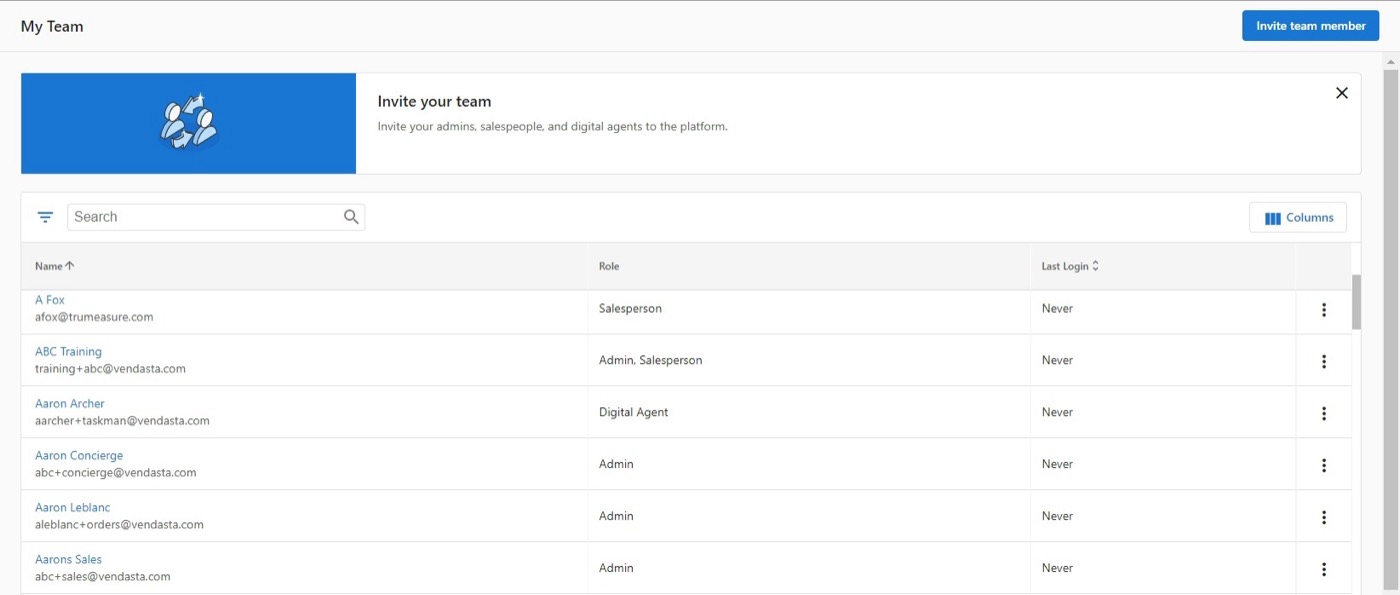
One more piece of Partner Center is yours to set: who on your team gets into it, and how much of it they see. Three roles cover everyone. Flip each one:
Permissions go finer than the roles themselves. You can restrict an Admin from specific areas, such as billing reports, platform customization, or creating other Admins. Most people on your team should hold at least some admin access, because permissions can narrow it afterward; defaulting everyone to Salesperson just to limit access gives them less than they need.
Your team lives under Administration → My team. Each person's row carries their role in the Role column, and a banner at the top of the page names how many seats your plan includes and what an additional seat costs per month. Invite team member in the upper right asks for a first name, last name, email, and the roles they hold; the roles are checkboxes, so one person can hold more than one. Permissions and market access are set after the person exists, rather than in the invite panel.
This guide covers every role and permission in full.
Knowledge Check
Three quick questions on the model, the two workspaces, where things happen for you versus for a client, and who on your team sees what.