Add a Vibe app to your store
You can turn an app you build in Vibe into a product in your store. Vibe drafts the listing, turns on sign-in, and makes the app work for whichever client account opens it. You activate the app on client accounts like any other product. Your clients open it from Business App already signed in, and each one sees their own account's data.
Before you start
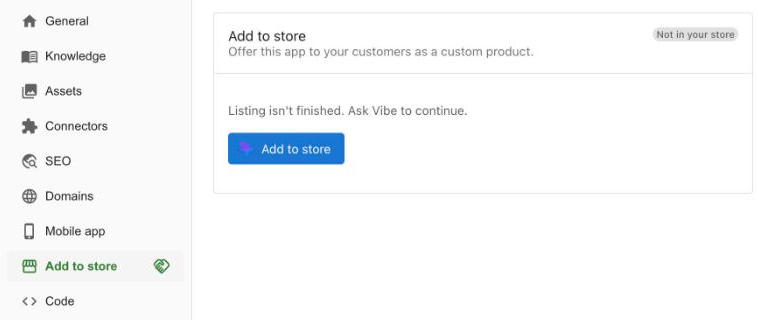
Build the app in Vibe in your primary account group, the Business App account for your own business. Only that account can add apps to your store. In any other account, Settings → Add to store shows "Only your partner's primary account group can add apps to the store."
Add the app to your store
- Open the app's project in Vibe.
- Go to
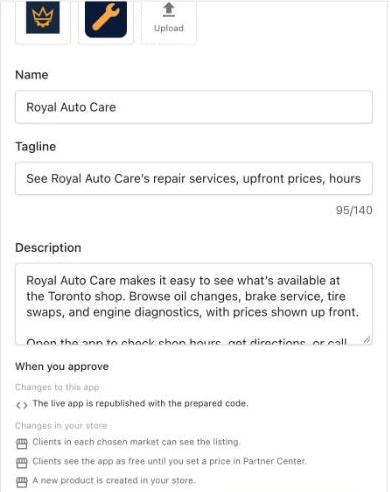
Settings→Add to storeand selectAdd to store. Vibe puts "Add this app to your store." in the chat. Send it. You can also ask for this in the chat yourself. - Vibe checks what the app needs and tells you in the chat. Then it shows a card titled "Add this app to your store?".
- On the card, choose an icon. Pick one of Vibe's options, or select
Uploadto use your own. - Check the
Name,Tagline, andDescription, and choose yourMarkets. - Read the
When you approvelist. - Select
Approve and publish. Vibe prepares the app, publishes it, and adds it to your store.
To leave the app out of your store, select Not now. Nothing changes.
What changes when you approve
The When you approve list shows only the changes that apply to your app.
Changes to the app can include:
- Sign-in is turned on for the app.
- The live app is republished with the prepared code.
- The chosen icon replaces the app's web and mobile icon.
- The app's Supabase Auth sign-in is replaced.
- Rows in the app's tables become separate for each account.
Changes in your store can include:
- A new product is created in your store.
- Clients in each chosen market can see the listing.
- Clients see the app as free until you set a price in Partner Center.
Set a price and activate the app
- In the project, go to
Settings→Add to storeand selectManage in Partner Center. The product opens in Partner Center. - Set the price. Until you do, clients see the app as free. See Create and manage your own products.
- Activate the app on client accounts the same way as any other product. See Activate products for a client.
Your clients open the app from Business App, already signed in, and each one works with their own account's data.
Change the listing or the app
- Listing: To change the name, tagline, description, or icon, ask Vibe in the chat. Vibe shows the listing card again for you to approve.
- Price and markets: Set prices and manage markets in Partner Center. Vibe can also add the app to more markets when you ask.
- The app itself: Publish the project again. Publishing updates the app on every account.
Remove the app from your store
- In the project, go to
Settings→Add to storeand selectRemove from store. - Select
Removeto confirm.
New activations are blocked. Clients who already have the app keep using it until you deactivate it in Partner Center. To list the app again, select Add back to store in the same place.
Store status in Settings
Settings → Add to store shows where the app stands.
| Status | What it means |
|---|---|
Not in your store | The app isn't listed. Select Add to store or ask Vibe to add it. |
Setting up… | Vibe is finishing the listing. |
In your store | The app is listed. |
Needs attention | The listing isn't finished, or the app changed after it was listed and clients who open it may not get their own account's data. Ask Vibe in the chat to finish or fix the listing. |
Removed | You removed the app. New activations are blocked, and existing ones keep working. |
Suspended | Vendasta suspended the app. New activations are blocked until it's restored. |
Stopped | The product can't be set up. Open it in Partner Center to see why. |
Good to know
- In Vibe this is "your store": it lists the app for your own clients only, not in anyone else's store.
- Vibe never sets a price. Prices, editions, and setup fees stay in Partner Center.
- If something blocks the listing, Vibe names it in the chat and changes nothing.
- Asking Vibe doesn't bring back an app you removed. Use
Add back to storeinSettings→Add to store. - To put the Business App navigation around the app, turn on the Business Nav connector. See Put the Business App navigation around a Vibe app.
Frequently asked questions
Why can't I add an app to my store from a client's account?
Only your primary account group, the Business App account for your own business, can add apps to your store. Build the app there, then add it to your store and activate it on client accounts.
Do my clients pay for the app?
Only if you set a price. Clients see the app as free until you set a price in Partner Center.
Does each client see the same data in the app?
No. Each client opens the app signed in to their own account and sees that account's data.
How do I update an app that's already in my store?
Publish the project again. Publishing updates the app on every account. To change the listing's name, tagline, description, or icon, ask Vibe in the chat.
What happens to clients who have the app when I remove it from my store?
They keep using it until you deactivate it on their account in Partner Center. New activations are blocked.
Can I sell a Vibe app outside my own store?
No. Adding an app to your store lists it for your own clients only.