How do I submit a request in the Support Portal?
Open support requests in the Support Portal at partners.vendasta.com/crm/tickets. Select Create ticket, choose the account and product, and describe the issue. Every ticket you open and its status are in one place, so you can check progress at any time.
Before you start
You need a Partner Center login.
Have these ready so our team can start right away:
- The account and product the request is about
- What you expected to happen and what happened instead
- The steps to reproduce the issue, the affected user, and when it happened
- Optional: screenshots or a video of the error
Open the Support Portal
You can reach your tickets two ways:
- Go to partners.vendasta.com/crm/tickets.
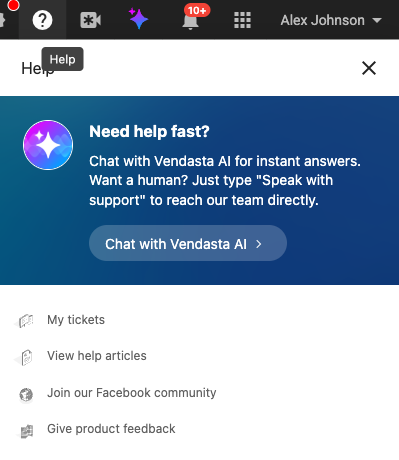
- In Partner Center, select the help icon in the top navigation, then select
My tickets.
Create a ticket
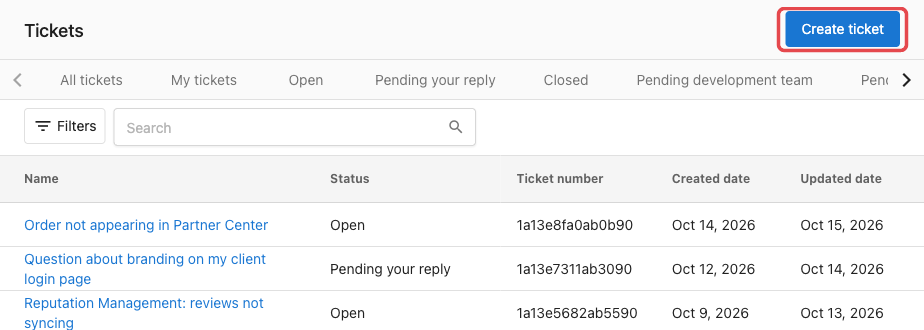
On the Tickets page, select Create ticket.
The New support ticket form opens. Fill it in:
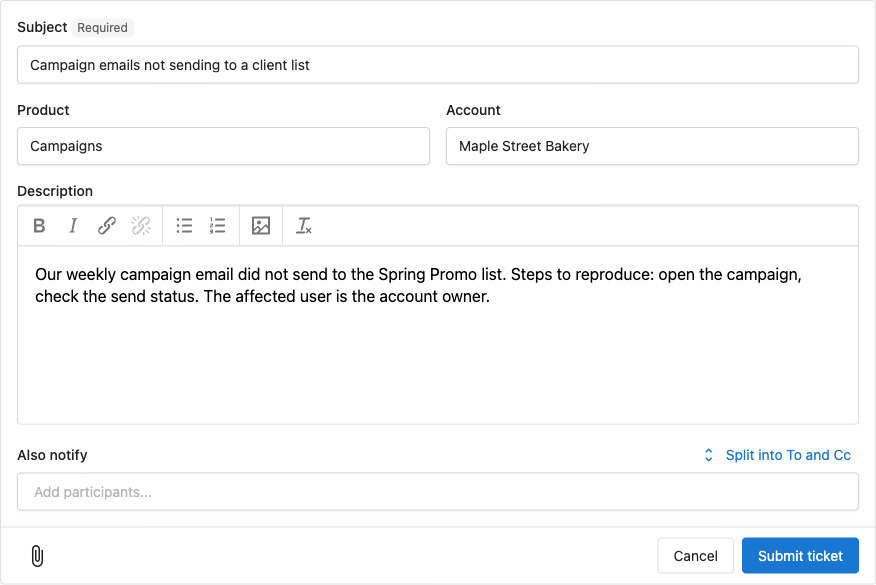
- Enter a
Subject. - Choose the
Productthe request is about. - Search for and choose the
Accountthe request is about. - Describe the issue in the
Descriptionfield. Keep it to one issue per ticket. - Select the paperclip icon to attach files, such as screenshots or a video of the error.
- Select
Submit ticket.
The portal asks for the product and account up front, so our team starts with the details they need and you get less back-and-forth.
Track your tickets
When our team replies to a ticket, you get an email with a button that opens the ticket in the portal.
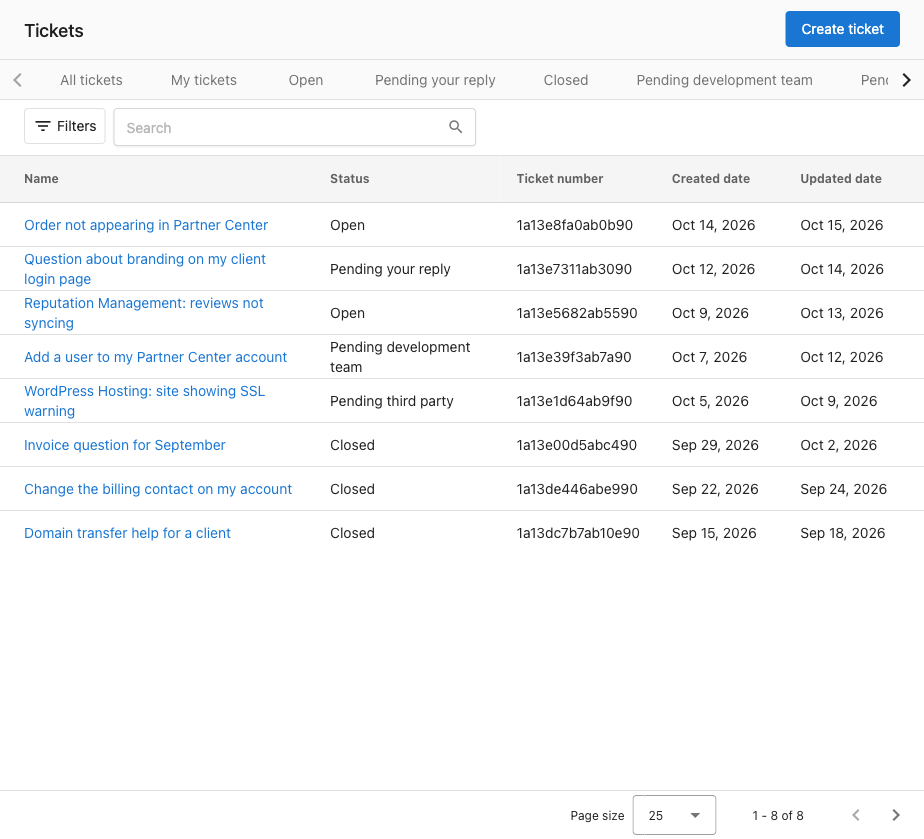
The Tickets page lists every ticket with its status, ticket number, and created and updated dates. Use the tabs above the list to narrow it:
All tickets: every ticket visible to your organizationMy tickets: the tickets you requestedOpenPending your replyClosedPending development teamPending third party
Use Search to find a ticket, or Filters to narrow the list. Select a ticket's name to open it.
Add information to an open ticket
To add information to an open request, reply on that ticket instead of opening a new one, so the history stays together.
- Open the ticket from the
Ticketspage. - Select
Add a response...and write your reply. - Send it. Your reply reaches your agent.
When the ticket says Did this resolve your issue?, select Close as resolved to close it.
Need help right away?
Select the help icon in the top navigation, then Chat with Vendasta AI for instant answers. To reach a person, type "Speak with support" in the chat. Phone support is available on certain subscription tiers.
FAQs
What do I need to open a ticket?
Your Partner Center login, the account and product the request is about, and a description of the issue.
Where do I see the status of my tickets?
On the Tickets page. Select the help icon in the top navigation, then My tickets, or go to partners.vendasta.com/crm/tickets.