Book Multi-Service Appointments (Chat & Voice)
Your AI Chat Receptionist and AI Voice Receptionist can now book appointments directly from Partner Center — you no longer need to open a client's Business App account to turn this on. Assign the Book Multi-Service Appointment capability to a receptionist, pick a bookable event type or service menu, and a prospect can book one or several services in a single conversation, whether they're chatting on the website or calling in.
This capability uses the same event types, groups, and service menus you set up in My Meetings. If a client hasn't created any event types yet, the capability's dropdown shows a clean empty state instead of an error — set up event types first, then come back to assign the capability.
At a glance
| What a prospect can do | Chat | Voice |
|---|---|---|
| Book a new appointment | Available | Available |
| Reschedule an existing appointment | Available | Planned |
| Cancel an appointment | Available | Planned |
| Book several services in one conversation | Available | Available |
| How the prospect is identified | Email address | Email address — the agent asks for it out loud |
| Confirmation | ||
| Reminder | Email, at the default reminder timing | Email, at the default reminder timing |
| Recommended AI model | No specific requirement | OpenAI GPT Realtime (2.0) |
Book Multi-Service Appointment (Chat)
Chat supports the full appointment lifecycle. A prospect can book a new appointment, reschedule an existing one, or cancel it, all inside the same conversation, without you or your client stepping in.
- Everything runs on email. The prospect gives their email address as part of booking, and that's how the assistant finds their appointment again when they come back to reschedule or cancel.
- Reschedule and cancel in conversation. A returning prospect can change or cancel their appointment by asking the chat assistant, instead of digging out the confirmation email.
- All your event types, grouped as you'd expect. The bookable event-type dropdown lists personal, team, and service-menu event types, grouped exactly as they are in Business App.
- Multi-service in one booking. With the multi-service toggle on, a prospect can select several services in a single chat conversation and one appointment is created covering all of them.
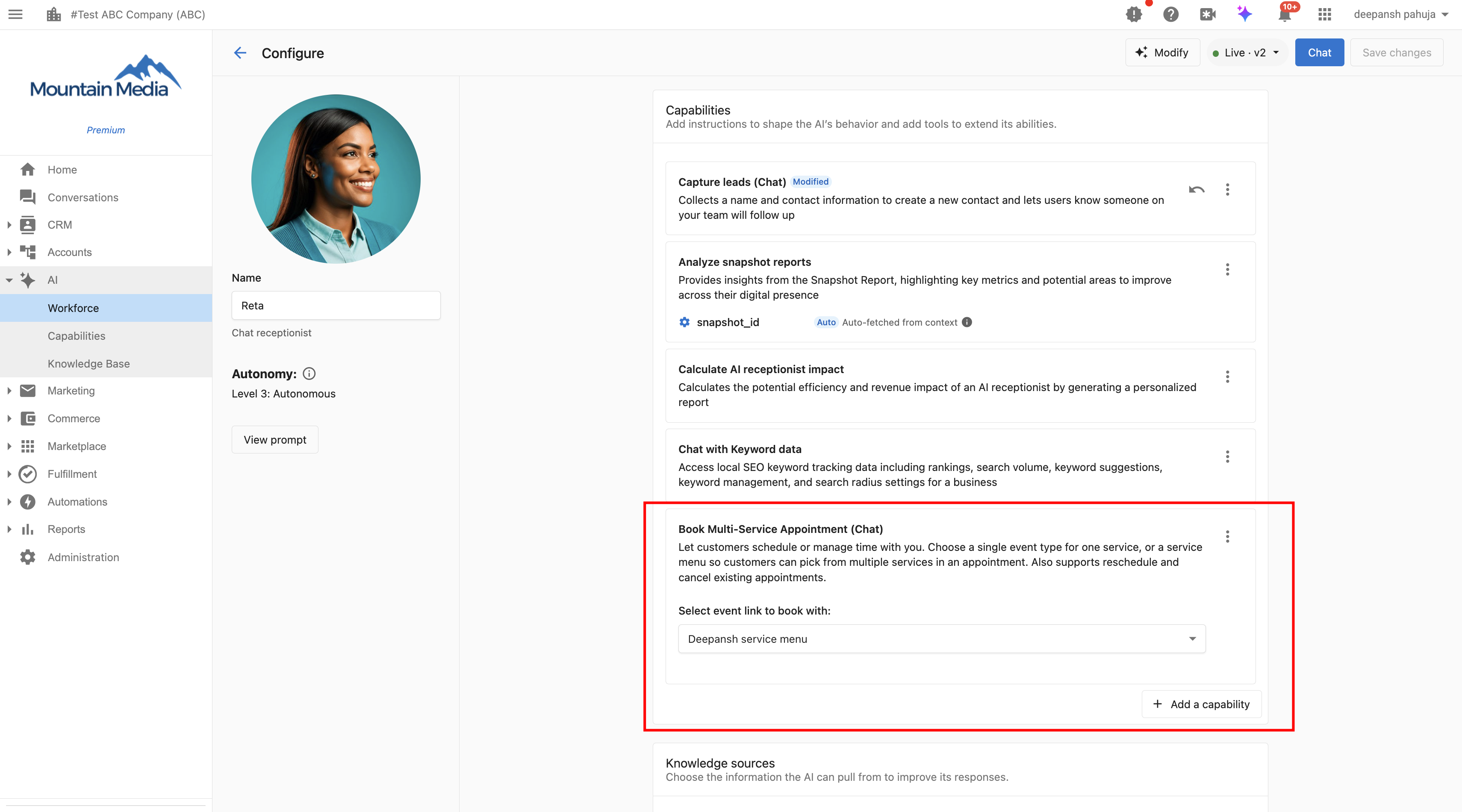
Set up Chat booking
- In Partner Center, open the client's account and go to
AI→Workforce. - Click
Configureon the Chat Receptionist. - In
Capabilities, click+ Add a capabilityand selectBook Multi-Service Appointment (Chat). - Under
Select event link to book with, choose a personal event type, team event type, or service menu. - Check the field requirements on the event type:
Emailis required and can't be switched off.Phone numberis optional — turn it on if you need it. Whatever you set persists after you save. - To let prospects book more than one service at a time, turn on the
multi-servicetoggle on the relevant service menu or group. See Groups and Service Menus. - Click
Save changes.
Book Multi-Service Appointment (Voice)
Voice supports new bookings in this release. Rescheduling and cancelling over a Partner Center call are planned, not yet available — until they ship, a prospect can reschedule or cancel through chat, or from the links in their confirmation email.
- The agent asks for an email address, not a phone number. Partner Center bookings are confirmed by email, so the voice agent asks the caller for their email address, reads it back, and only books once the caller confirms it. This is the key difference from Business App voice, where the phone number is the identifier.
- Phone number only when the event type requires it. The agent asks for a phone number only if the selected event type requires one, and skips the question otherwise.
- Every event type is bookable. The Partner Center voice event-type dropdown lists all of a client's event types and service menus, not only the ones that notify by SMS — that restriction still applies in Business App.
- Multi-service in one call. A multi-service selection books every chosen service in a single appointment.
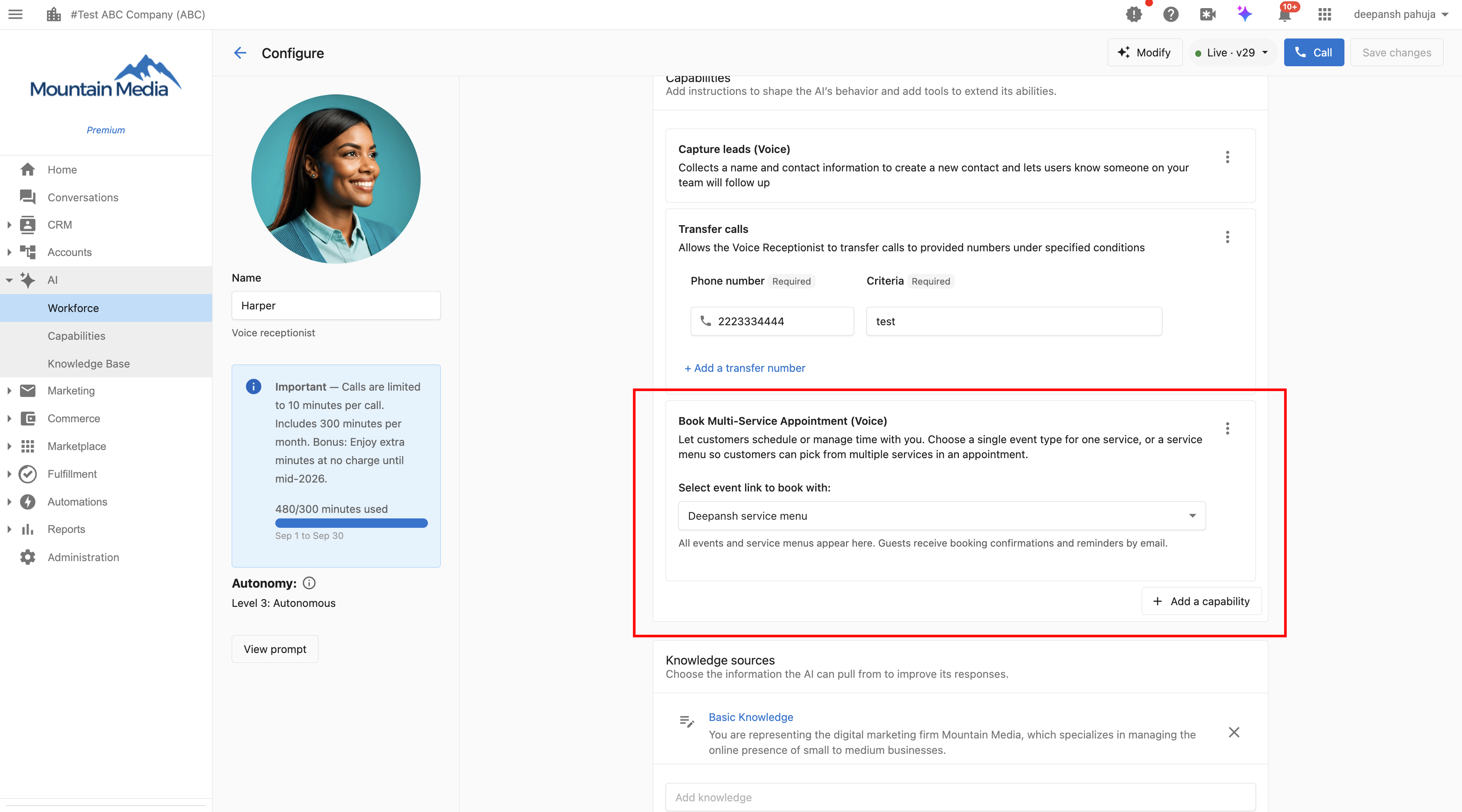
Set up Voice booking
- In Partner Center, open the client's account and go to AI → Workforce.
- Click Configure on the Voice Receptionist.
- In Capabilities, click + Add a capability and select Book Multi-Service Appointment (Voice).
- Under Select event link to book with, choose the bookable event type or service menu.
- Set the receptionist's model to OpenAI GPT Realtime (2.0). Capturing the caller's email correctly is the make-or-break step in this flow, and this is the model recommended for it — other models will run, but aren't recommended for this capability.
- To let callers book more than one service at a time, turn on the multi-service toggle on the relevant service menu or group. See Groups and Service Menus.
- Click Save changes.
What both capabilities share
- Email is always required on a Partner Center event type. The Required toggle for email is on and can't be switched off, since email is how confirmations and reminders are delivered here.
- Phone number is optional. Its Required toggle is off by default. Turn it on if you need a number — it persists after save and is still set when you reopen the event type.
- Confirmations and reminders go by email only. There's no notification-medium selector in Partner Center. Every event type created or updated here sends an email confirmation and an email reminder at the default reminder timing, whether or not a phone number is required. This is enforced at the API level too, so the rule holds even for bookings created outside the UI.
- Multi-service booking is available on a service menu and on a group.
- Appointments are created in the correct timezone for the prospect.
- Business App is unaffected. Event-type dropdowns, voice booking, reschedule, cancel, and the SMS-based flows all behave exactly as they do today in Business App. A Business App voice call is never asked for an email address, and its voice dropdown still lists only SMS-notifying event types.
Confirmations and reminders are email only for Partner Center bookings, on both capabilities. There's no SMS confirmation or SMS reminder here.
Good to know
- The confirmation email needs to be accepted for the appointment to appear in the prospect's own calendar — worth knowing if you're tracking no-shows.
- Keep roles and knowledge lean. If a receptionist carries a large set of role instructions and knowledge alongside the booking capability, the booking tools may not get called at all. Point role instructions at the multi-service booking capability by its unique meeting name or meeting ID, and keep detailed booking instructions out of your general qualification and behavior capability.
- Voice reschedule and cancel are planned, not shipped. Set expectations with your client accordingly if voice is their primary channel.
Frequently asked questions
Can a prospect reschedule or cancel an appointment by voice?
Not yet. Voice supports new bookings only in this release. Rescheduling and cancelling are planned but not available — a prospect can reschedule or cancel through chat instead, or from the links in their confirmation email.
Does assigning this capability in Partner Center change anything in Business App?
No. Assigning and using the equivalent capability in Business App works exactly as before, including its SMS-based notification options and its event-type dropdown, which still lists the account group's event types.
Can I require SMS confirmations for a Partner Center booking?
No. Confirmations and reminders for Partner Center bookings are always sent by email, regardless of whether a phone number is required on the event type. This is enforced at the API level, so it applies even to bookings created outside the UI.
Why isn't my Voice Receptionist calling the booking capability?
Check how much else is loaded on that receptionist. A large set of role instructions or a heavy knowledge base competing with the booking capability can prevent the booking tools from being called. Reference the capability by its unique meeting name or meeting ID in your role instructions, and keep general qualification instructions separate from booking instructions.