Remove field options that records still use
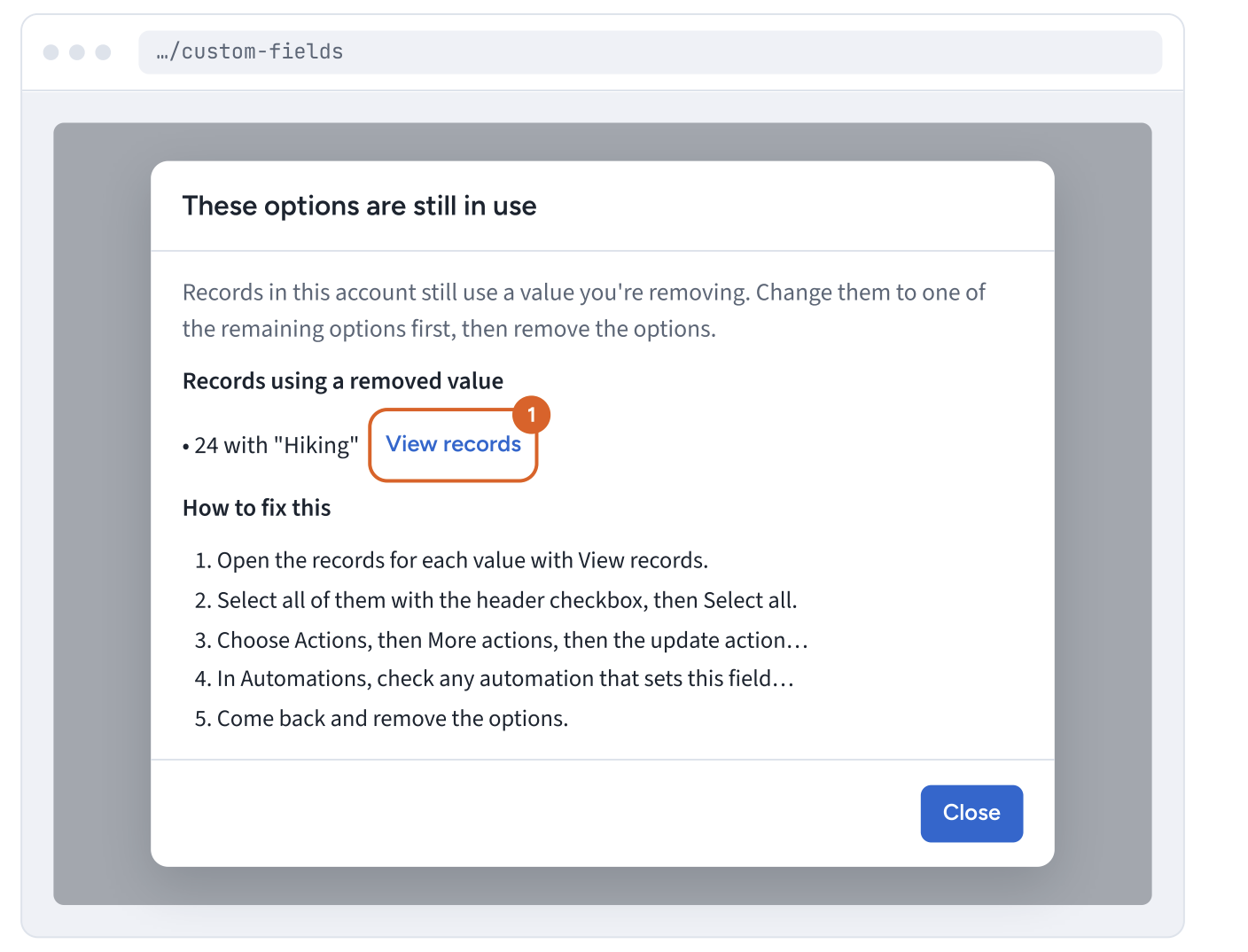
When you remove an option from a CRM field and click Save, CRM checks whether any records in the account still hold that value. If they do, it shows These options are still in use and doesn't save the change. Move those records to another value first, then remove the option.
The examples on this page use a contact field, Interests, with the option "Hiking" being removed and "Camping" and "Scuba" kept.
Why CRM blocks the change
Once a field has options, every record must hold one of them. A record that still holds a removed option would fail validation the next time anyone or anything edits it, including imports and automations. CRM counts records in the current account only. Field options you set in one account don't affect other accounts.
Step 1: Open the records that use the option
The dialog lists each removed option that's still in use and how many records hold it, for example 24 with "Hiking".
- Click
View recordsnext to a line. The list opens filtered to those records, and the dialog closes. - If you removed several options, repeat steps 1–4 for each line.
The dialog only has Close. You can't save the field until no records hold the removed option.
Step 2: Select all the records
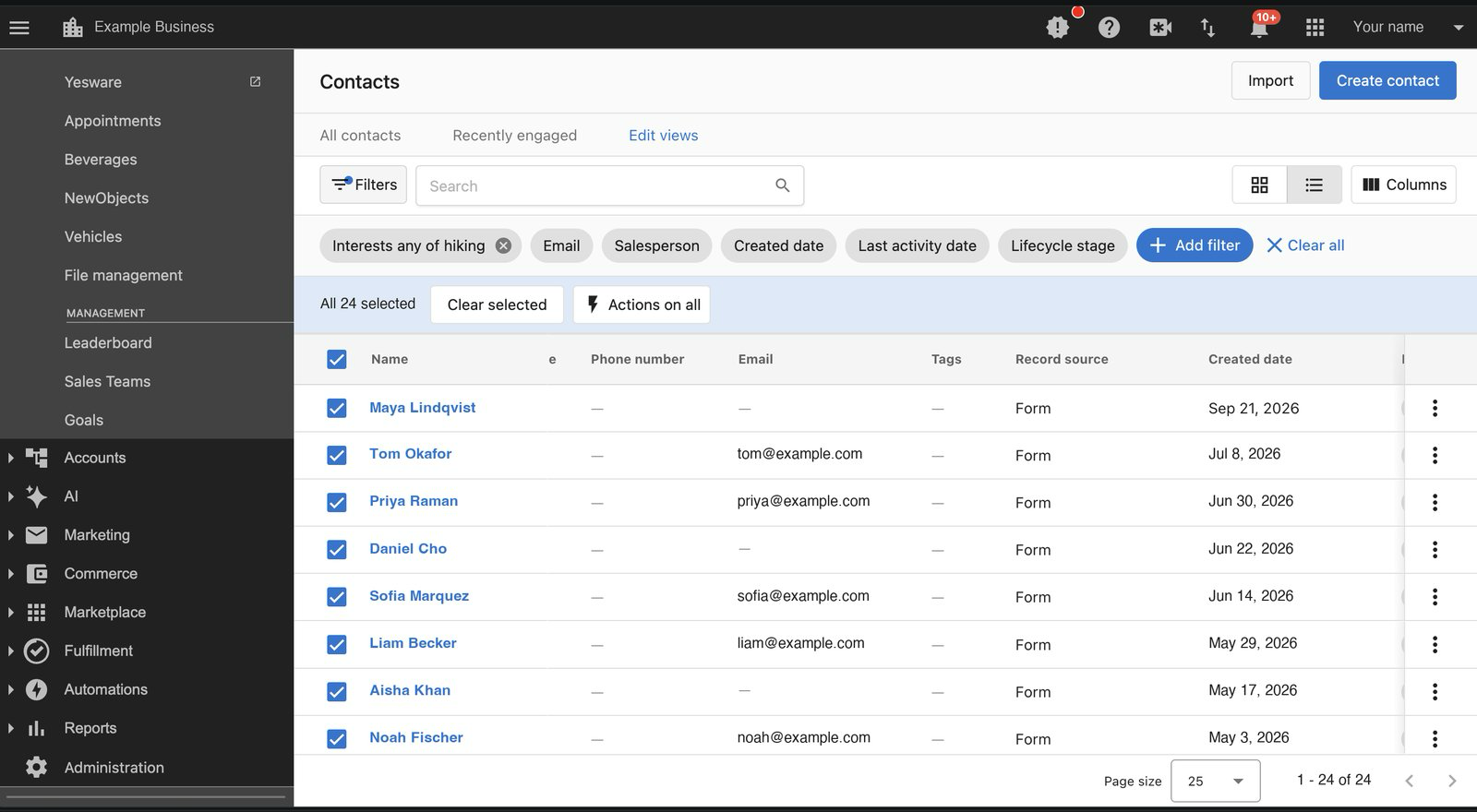
- Check the filter chip above the list. It reads
Interests any of hiking. - Select the checkbox in the table header.
- If a banner shows how many records on this page are selected, click
Select allso records on later pages are included too. - Check the bar above the table. It reads
All 24 selected, with the same number as the dialog.
Records you leave out keep the old value, and the dialog appears again when you try to save.
Step 3: Open the update action
- In the selection bar, click
Actions on all. - Click
More actions. - In the
Choose an actionpanel, search for or scroll to the update action for the record type:Update contactfor contactsUpdate companyfor companiesUpdate custom objectfor custom objects
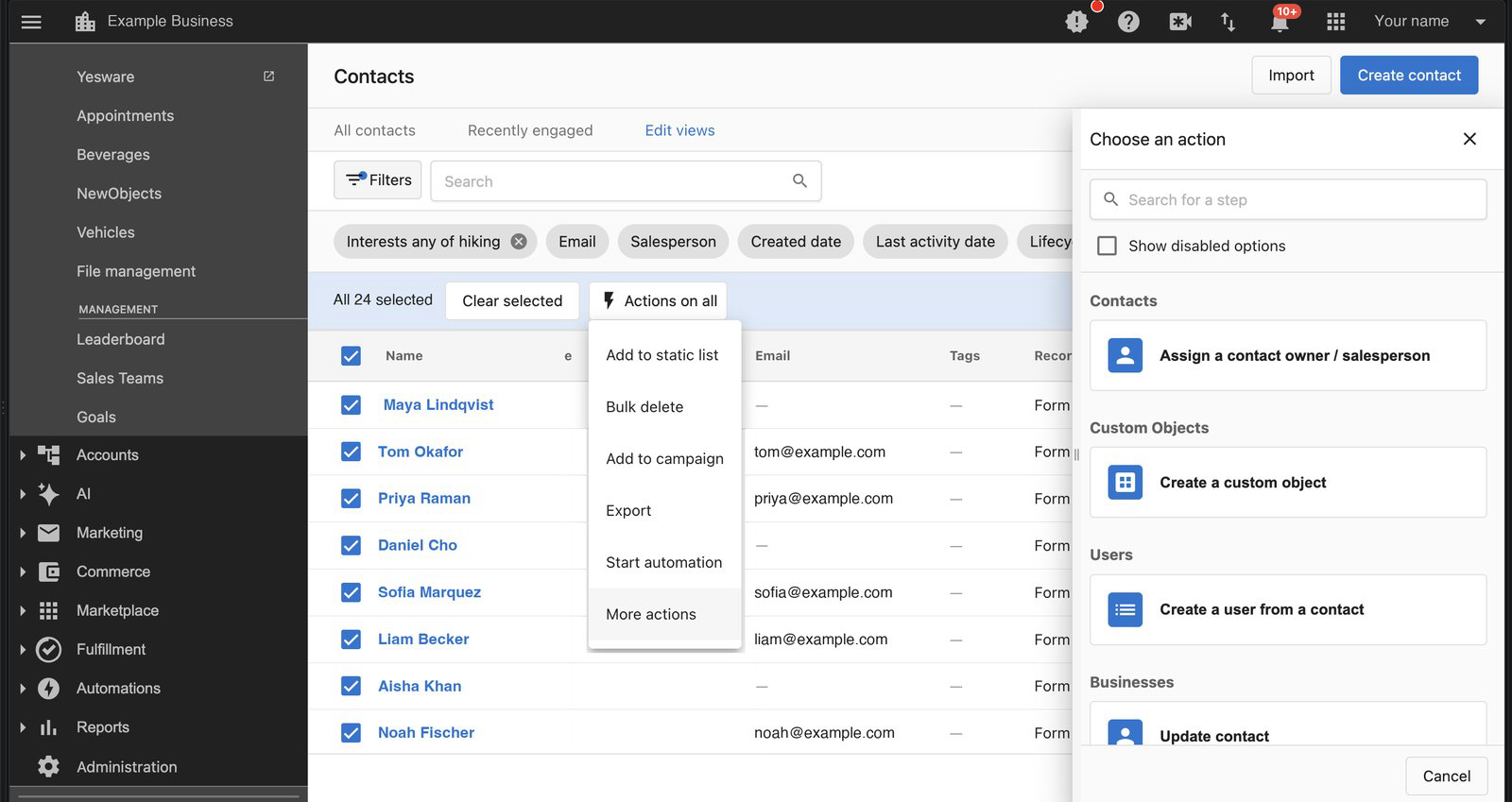
The update panel opens.
Step 4: Remove, replace, or clear the value
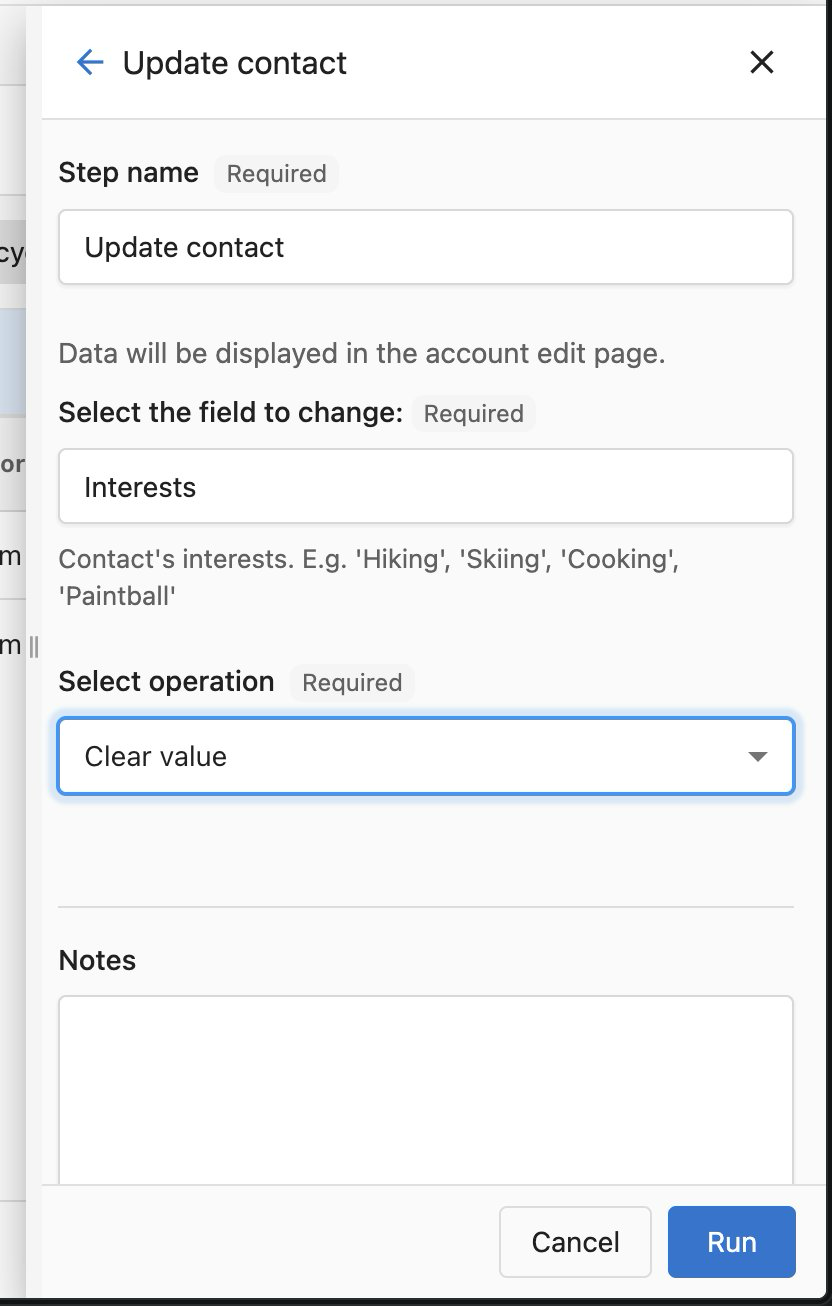
In Select the field to change, choose the field from the dialog. Then open Select operation and choose one of these:
| Operation | What it does | Result for a record with "Hiking, Scuba" |
|---|---|---|
Remove from value | Removes only the values you enter and keeps the rest. Available for text list and tag fields. | Scuba |
Set value | Replaces the whole value with the values you enter. | Camping |
Clear value | Empties the field. | No value |
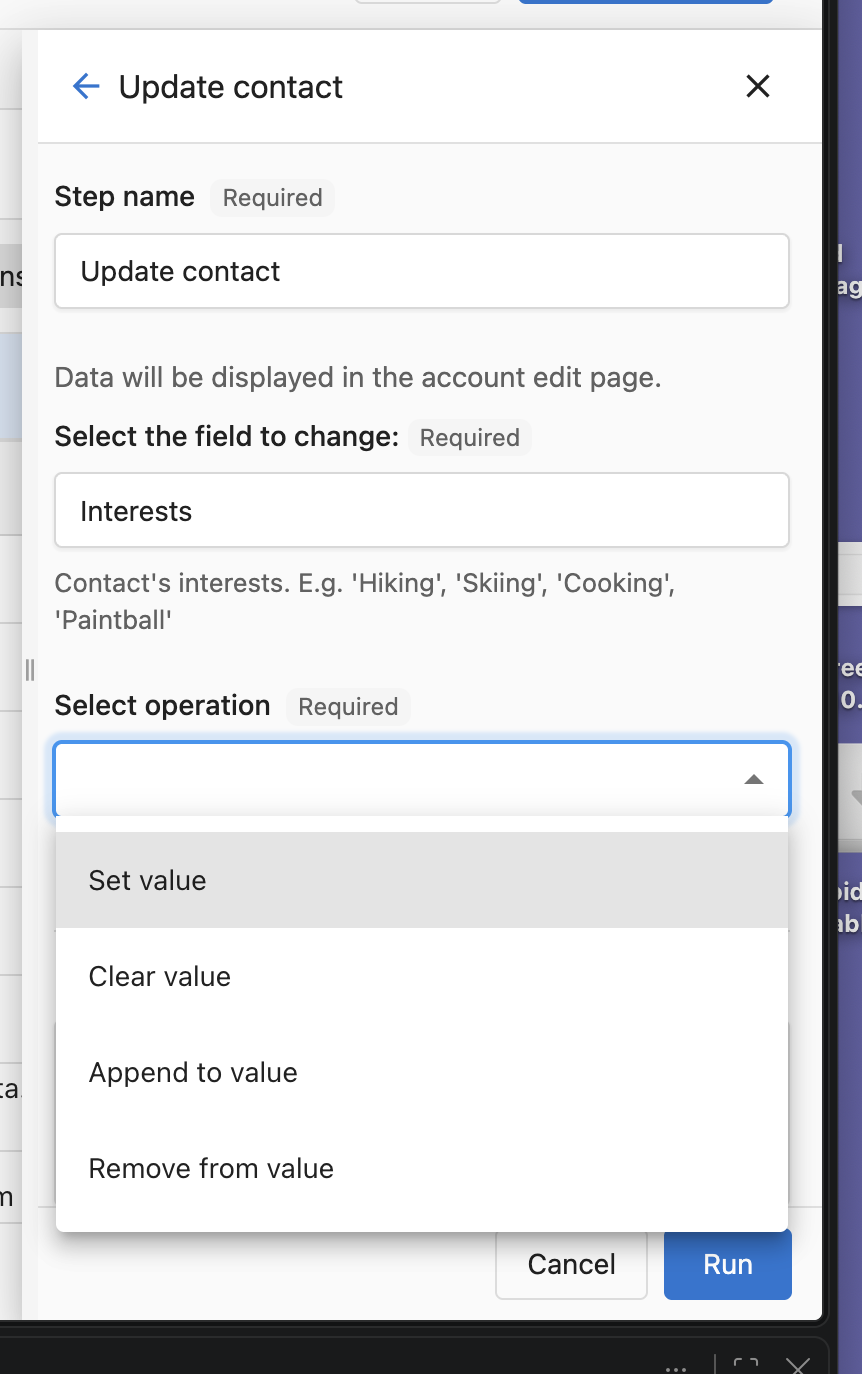
Remove only that option
Use this for text list fields, so records keep their other values.
- In
Select operation, chooseRemove from value. - In the box below it, enter the option you're removing, such as "Hiking".
- Click
Run.
A record with "Hiking, Scuba" ends up with "Scuba". A record with only "Hiking" ends up with no value. Matching ignores upper and lower case.
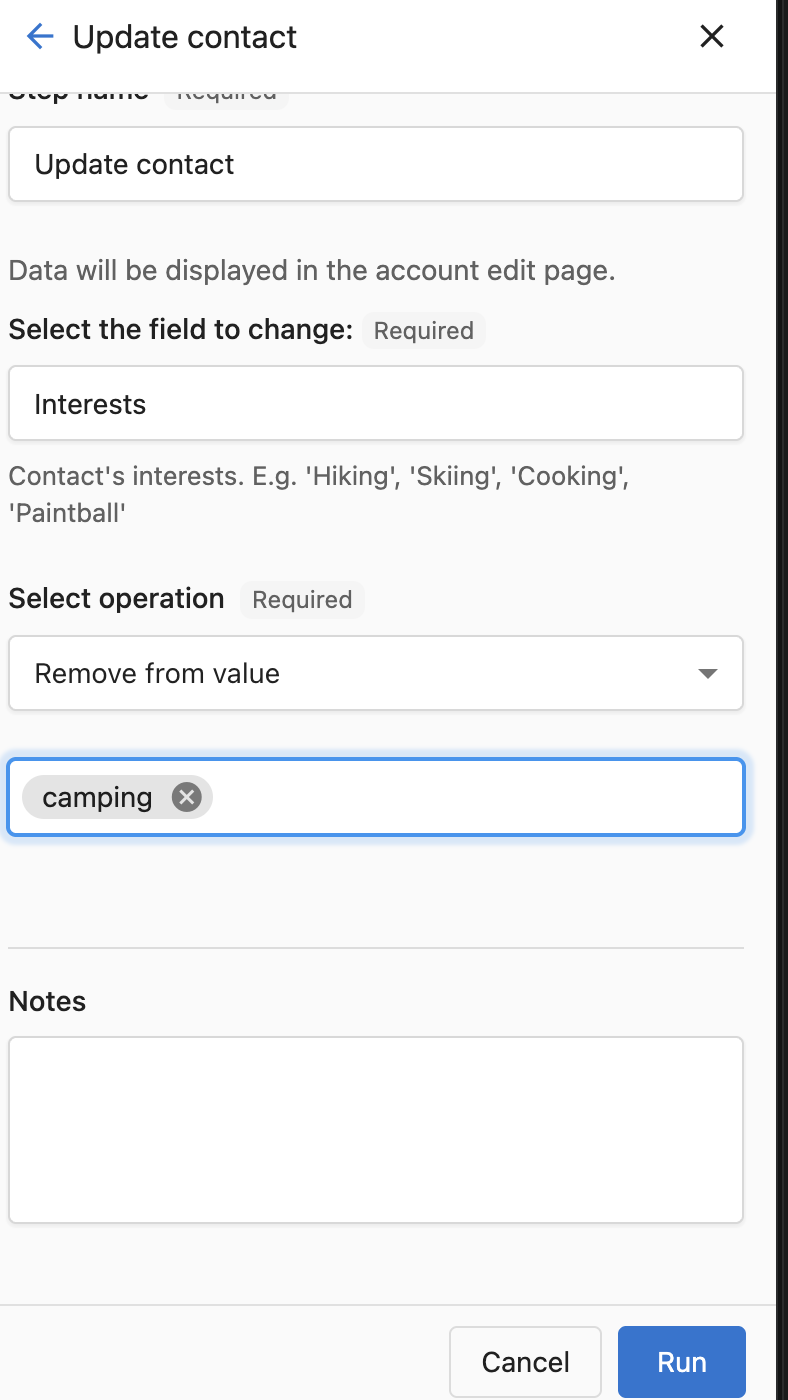
Replace it with another option
- In
Select operation, chooseSet value. - In the box below it, choose one of the options you're keeping, such as "Camping".
- Click
Run.
On a text list field, Set value replaces the whole list. A record with "Hiking, Scuba" ends up with only "Camping". To keep "Scuba", add it in the box too, or use Remove from value.
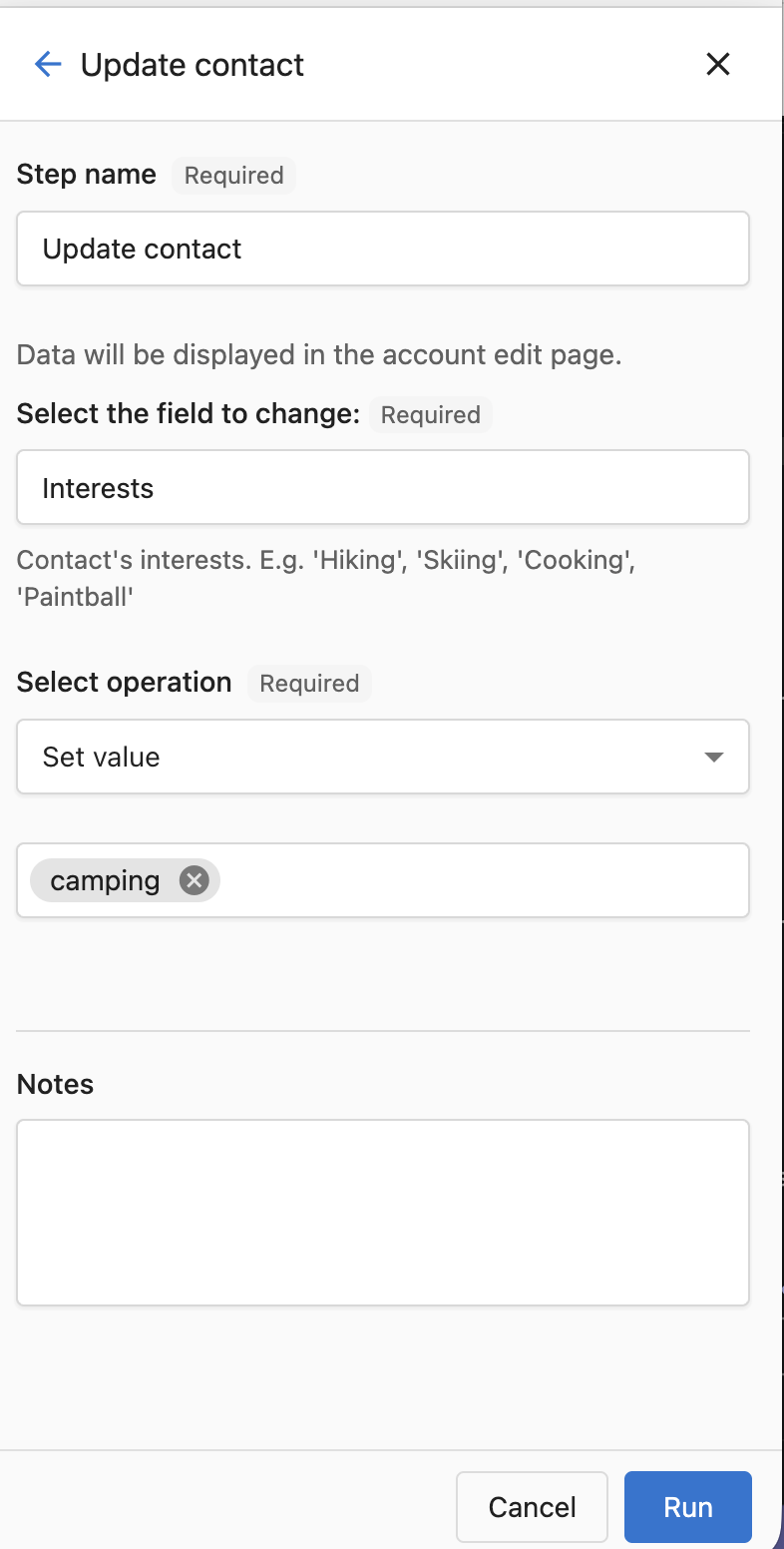
Clear the value
- In
Select operation, chooseClear value. - Click
Run.
Clear value empties the whole field. On a text list field it removes every value, not just "Hiking". To keep the other values, use Remove from value.
Check the result
Refresh the filtered list. When the update finishes, it shows no records.
Large updates run in the background and can take a few minutes. If records are still listed, wait a moment and refresh again.
Step 5: Update automations that write the old value
The dialog counts records only. It doesn't check automations, so always do this step. An automation that still writes the removed option puts it back on records, or fails once the option is gone.
- Go to
Automations. - Open each running automation that updates this record type. Look for steps such as
Update contact,Update company, orUpdate custom object. - In each step that writes the removed option to this field, change the value to one of the remaining options, or remove the step.
- Save the automation.
If a step fills the value from another source, such as a form answer, check that the source can't produce the removed option.
Step 6: Remove the option
- Go to
Administration→Data management→CRM objectsand open the field. - Under
Field options, click theXnext to the option you're removing. - Click
Save. The button shows a loading indicator while CRM counts the records.
When no records hold the value, the field saves and the panel closes. If the dialog appears again, some records were missed or an automation wrote the value back. The dialog shows the new count. Repeat from step 1 for the remaining records.