Configuración de Conversaciones
Configura la gestión de conversaciones y las herramientas de comunicación: ajustes de chat, plantillas de respuesta, enrutamiento de conversaciones y quién puede ver la pestaña Conversations en Business App. Puedes desactivar la pestaña Conversations para usuarios específicos o para todas las cuentas de un mercado.
Desactivar la pestaña Conversations
La pestaña Conversations en Business App se puede ocultar a los clientes, para usuarios específicos o para todas las cuentas de un mercado.
Quitar el acceso de un usuario a Conversations también elimina el acceso a Conversations Pro, Lead capture y la mensajería SMS. No se recomienda desactivarla a menos que tengas un motivo concreto.
Para usuarios específicos
-
Ve a
Partner Center→Accounts→Manage Users -
Selecciona el usuario o los usuarios que quieras cambiar y haz clic en
Bulk Update x users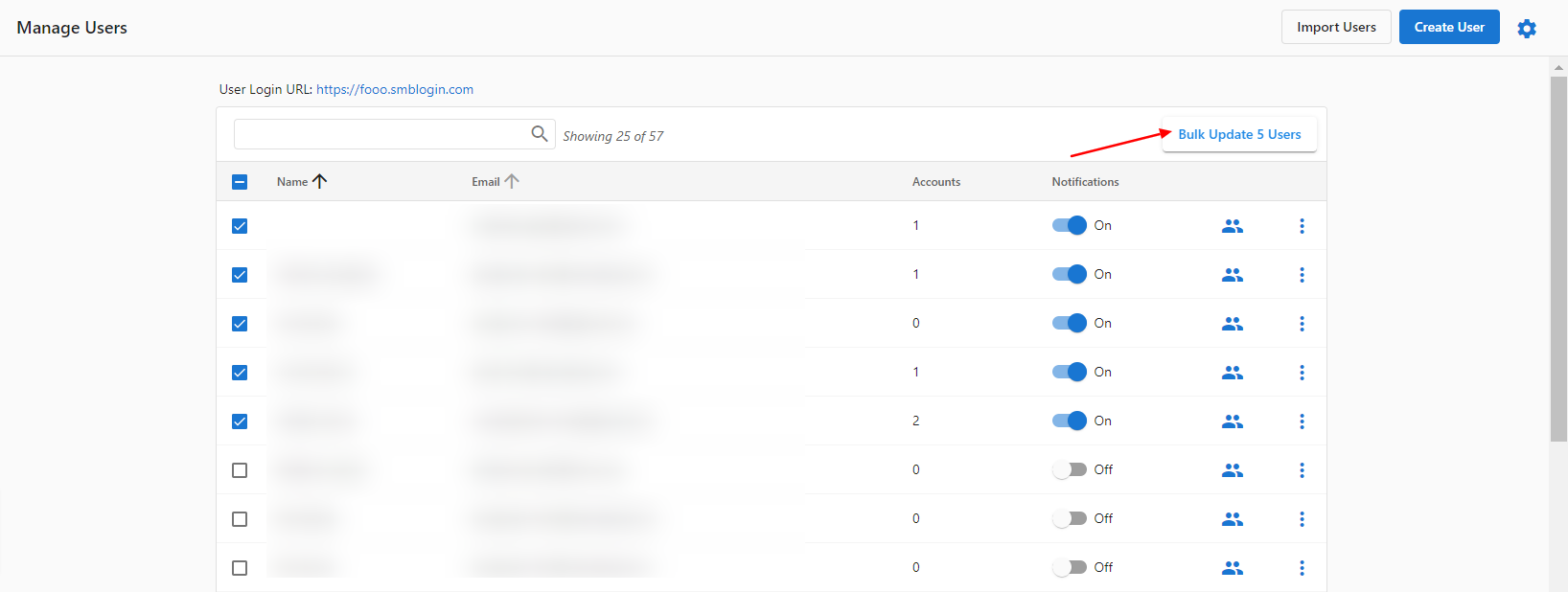
-
En
Tab Access, abre el menú desplegableConversations, seleccionaTurn Offy luegoApply Changes to Users
Para todos los usuarios de un mercado
-
Ve a
Partner Center→Administration→Customize Business App→Pages→Conversations -
Desmarca la casilla
Show this pagey guarda para quitar Conversations de todos los clientes de ese mercado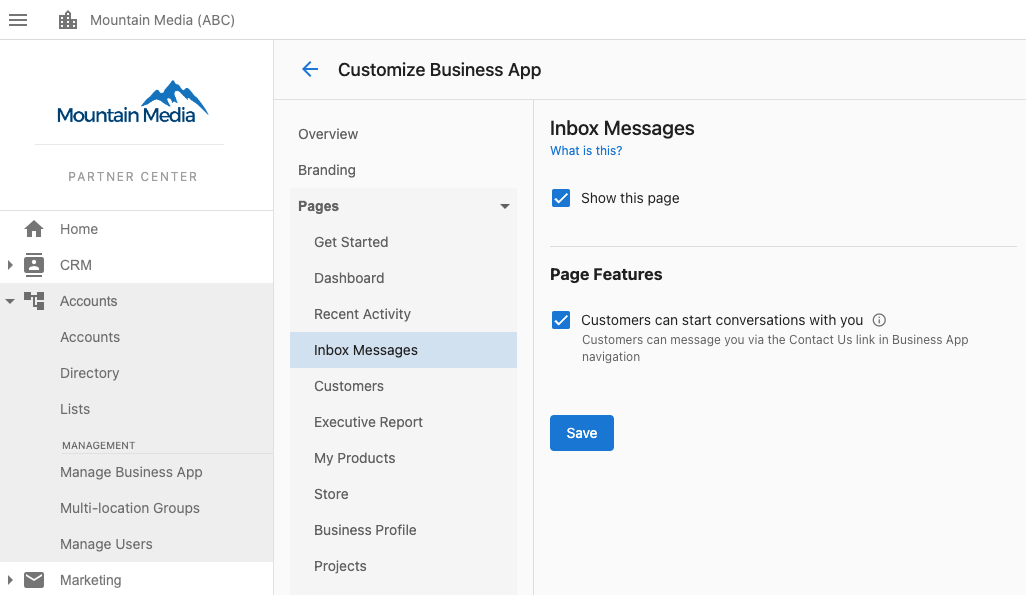
Qué puedes configurar
- Ajustes de chat – Preferencias de chat en vivo y mensajería
- Plantillas de respuesta – Plantillas de respuesta rápida
- Respuestas automáticas – Respuestas automatizadas para consultas frecuentes
- Enrutamiento de conversaciones – Cómo se asignan las conversaciones a los miembros del equipo
- Integraciones – Plataformas de comunicación externas
- Visibilidad de la pestaña – Qué usuarios o mercados ven la pestaña Conversations (ver más arriba)
Si necesitas ayuda con la configuración de conversaciones, contacta con soporte.